

January 3, 2013

For designing a commercial image or creative work you can show your talent making a Design Golden Flame in Adobe Photoshop. Lets see how. Open Adobe Photoshop and open a new document which size I prefer 1200*800px, then fill the background color by black color. On the background type, here who favor which font, doesn’t matter to select any font, I just wrote some texts onto it. Now we are in second layer. I applied the layer blending options. From style select outer glow, inner glow, bevel and emboss-contour, stroke. Now set in the outer glow-structure-blend mode (screen), opacity (75%),
January 2, 2013

Would like to create images really show up? Whereas stereoscopic special effects similar to Cyan/Red 3D are frequently shaped with fancy photography activities, I’ll be produce with simple deception image editing. Jump right on in and observe how easy it is able to be, by way of an easy version for Photoshop beginners, and another second element for users that want to give image some more get-up-and-go. Create a Red or Cyan Effect Out of an Image in Photoshop The practical term for a 3D image is an Anaglyph, which are generally designed by photographing a subject from two separate
January 1, 2013
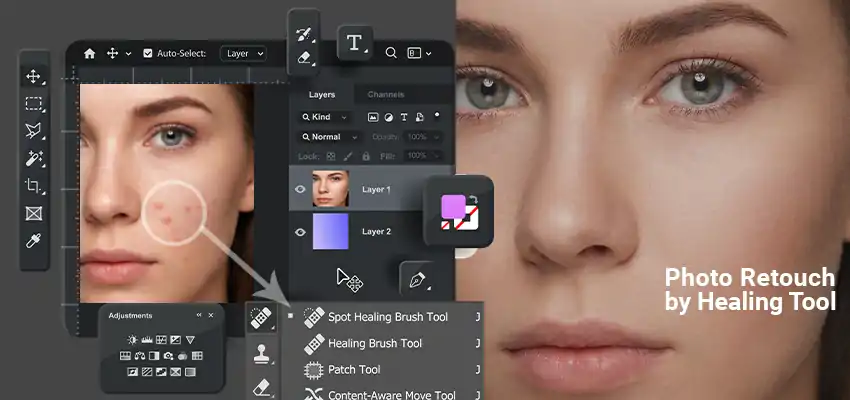
There’s always one thing wrong with a photo. A pimple that showed up the day of the shoot. A scratch on a scanned print from twenty years ago. A power line running straight through what would’ve been a perfect sky. Photoshop actually has a good set of tools for exactly this kind of stuff, and once you get used to which one does what, most fixes take way less time than you’d think. Let’s go through them one by one. Spot Healing Brush Tool This is usually the first tool people learn, mostly because it’s so easy to use. Small