DPI vs PPI for Product Images: What’s the Difference and Why It Matters for Print vs Web

Ever sent a perfectly sharp product photo to a printer, only to hear that the resolution wasn’t good enough? It’s frustrating, especially when the same image looks excellent on your computer screen.
This usually happens because screen resolution and print resolution work differently. And that’s where DPI and PPI come into the picture.
The two terms are often used as if they mean the same thing. Even professional designers and print shops sometimes mix them up. But there’s a difference worth understanding, particularly if you work with product photography, ecommerce images, catalogs, or packaging designs.
Here’s what you need to know before exporting your next batch of images.
DPI vs PPI: What’s the Actual Difference?

Let’s clear up the terminology first.
PPI stands for Pixels Per Inch. It describes how densely an image’s pixels are arranged when the image is assigned a physical size.
DPI stands for Dots Per Inch. It measures the density of tiny ink or toner dots a printer can produce.
Think of PPI as something related to your digital image and DPI as something related to the printing equipment.
Say you’ve photographed a pair of sneakers. Your camera produces an image measuring 4500 × 3000 pixels. Those dimensions represent the actual image data.
If you print it at 300 PPI, the photograph will measure 15 × 10 inches. Change the setting to 150 PPI without resampling, and it becomes 30 × 20 inches.
Same photograph. Same pixels. Different print size.
The larger version may look less detailed because the available pixels are spread across a bigger area.
DPI works differently. A printer might operate at 600 or 1200 DPI, using patterns of tiny ink dots to reproduce colors and details. Multiple printer dots may contribute to the appearance of a single image pixel.
That’s why a 300 PPI image can be printed using a 1200 DPI printer without any contradiction.
The image provides the pixel information. The printer determines how that information gets reproduced on paper.
Does PPI Matter for Website Product Images?
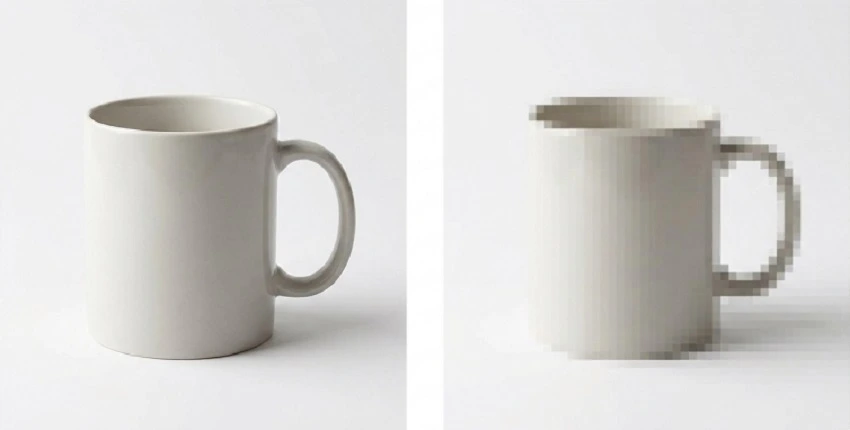
Not nearly as much as people think.
If you’re uploading product photos to Shopify, WooCommerce, Amazon, or another ecommerce platform, changing the PPI setting from 72 to 300 won’t magically improve how the images appear.
Web browsers mainly care about pixel dimensions.
A 2000 × 2000-pixel photograph contains the same image information whether its metadata says 72 PPI or 300 PPI.
This is why the old advice to save every website image at 72 PPI is misleading. There’s nothing wrong with that setting, but it doesn’t make the file load faster or display better.
For web images, three things deserve your attention instead.
Get the Pixel Dimensions Right
A small product thumbnail doesn’t need the same resolution as a full-screen product photograph.
However, images that support zooming need enough detail to remain sharp when customers examine them closely.
This matters for products such as watches, jewelry, clothing, and electronics. Buyers often want to see stitching, textures, labels, and finishing details.
Start with the dimensions recommended by your ecommerce platform, then adjust them to match your website’s actual display requirements.
Keep the File Size Reasonable
High-resolution photographs straight from a camera can easily reach several megabytes.
Upload too many of those files without optimization, and your product pages may become unnecessarily slow.
JPEG is still useful for product photography, while WebP and AVIF often provide smaller files without a noticeable loss of quality.
For ordinary product images, a few hundred kilobytes can be a practical target. Larger zoom images may need more.
Don’t chase the smallest possible file at the expense of visible product details. A lightweight image isn’t helpful if customers can’t properly examine what you’re selling.
Remember High-Density Screens
Modern smartphones and laptops often pack more physical screen pixels into the same display area.
To keep images sharp, websites can provide higher-resolution files than their CSS display dimensions.
For example, an image displayed at 800 CSS pixels wide may benefit from a 1600-pixel source on a 2× display.
Responsive image techniques help browsers select suitable files for different screens.
Again, the improvement comes from the actual number of pixels, not the PPI metadata.
Why PPI Becomes Important for Printing
Printing is a different story.
When you’re preparing a product catalog, brochure, or packaging design, the image has to contain enough pixels for its final physical size.
For many commercial print projects, 300 PPI is a reliable starting point.
At normal reading distances, this usually provides enough detail for sharp-looking photographs.
But here’s something people overlook: a file doesn’t become print-ready just because you change its resolution setting to 300 PPI.
Imagine receiving a 600 × 600-pixel product photo from a client.
At 300 PPI, that image is suitable for a print measuring only 2 × 2 inches. If the client wants it printed at 8 × 8 inches, the effective resolution drops to 75 PPI.
You can change the number in Photoshop, but you can’t recover missing photographic details that easily.
This is why checking pixel dimensions matters more than simply looking for a 300 PPI label.
A Simple Way to Calculate Print Resolution
You don’t need complicated software to work out whether an image is large enough.
Multiply the required print dimensions in inches by the target PPI.
For example: A 4 × 4-inch product image needs 1200 × 120