Shopify Product Image Size Requirements: The Complete 2026 Guide
Have you noticed your Shopify store looks a bit off? Blurry thumbnails, slow pages, or product photos that shine on your laptop but not on mobile? We bet it’s because your images aren’t optimized.
We’ve worked with many e-commerce brands, and image optimization is often the missed opportunity. Store owners spend thousands on ads, SEO, and email campaigns, but they often ignore what customers actually see before buying.
This guide covers Shopify product image size requirements for 2026, including dimensions, formats, and compression.
Suggested Article– Amazon Image Requirements
Why Image Optimization Actually Matters (More Than You Think)
Before we give you the numbers, let me tell you why this matters.
Google’s Core Web Vitals update made page speed a ranking factor. Largest Contentful Paint (LCP) is one of the three signals Google uses. It’s influenced by your hero images and product photos.
On top of that, a one-second delay in page load time can reduce conversions by 7%. That’s not a rounding error. That’s real money walking out the door.
Mobile is crucial. Over 70% of Shopify traffic comes from mobile devices. A 4MB product image looks great on a 27-inch monitor. But on a phone with a typical internet connection, it becomes pixelated and slow to load.
Bottom line: getting your image specs right isn’t a nice-to-have. It’s table stakes.
Shopify Product Image Size Requirements: The 2026 Breakdown
Let’s give you the hard numbers first, then I’ll explain the reasoning behind each one.
Maximum File Size
Shopify allows product images up to 20MB per file. But just because you can upload a 20MB image doesn’t mean you should. For practical purposes, you want to stay under 1MB for most product images and under 500KB for anything that loads above the fold.
Yes, you read that right. Under 1MB. Modern compression tools make this completely achievable without any visible quality loss, and I’ll show you exactly how.
Recommended Image Dimensions
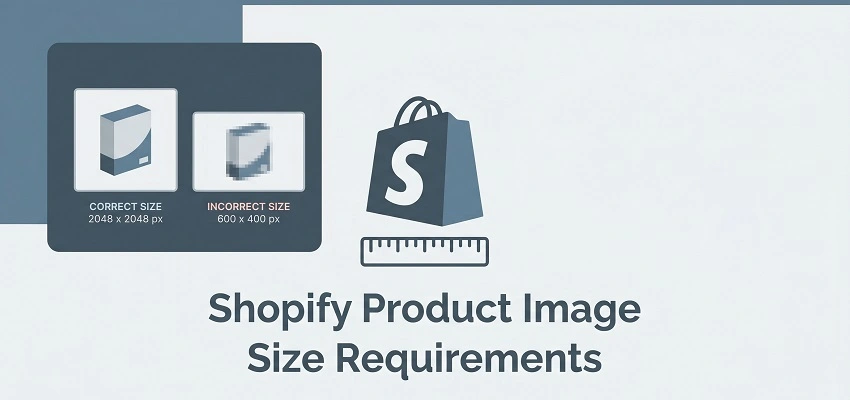
Here’s where people get confused. Shopify doesn’t set a specific image size, but its zoom feature and retina display work best at:
- Minimum: 800 x 800px
- Recommended: 2048 x 2048px
- Maximum rendered size: 4472 x 4472px
For most stores, 2048 x 2048px is the sweet spot. It’s large enough to support Shopify’s zoom feature (which customers use constantly, it builds trust), sharp on retina/high-DPI displays, and manageable to compress to a reasonable file size.
If you’re selling products where detail really matters- jewelry, fabric textures, and electronics, go up to 2048px without hesitation. If you’re selling, say, bulk commodity items, you can probably get away with 1024px.
Aspect Ratio
This is the one most people ignore, and it causes real problems. Shopify will display your images in the aspect ratio you upload them, but your theme likely expects a consistent ratio across all product images.
The industry standard that works across the most Shopify themes is 1:1 (square). If your theme uses portrait-oriented images, go with 3:4. Never mix ratios within the same collection or product page. It makes your store look amateurish, and it shows trust.
My recommendation: pick one ratio, shoot everything in that ratio, done.
Image Formats: WebP, JPEG, or PNG?
This is where 2026 is genuinely different from just a few years ago.
WebP: The New Default
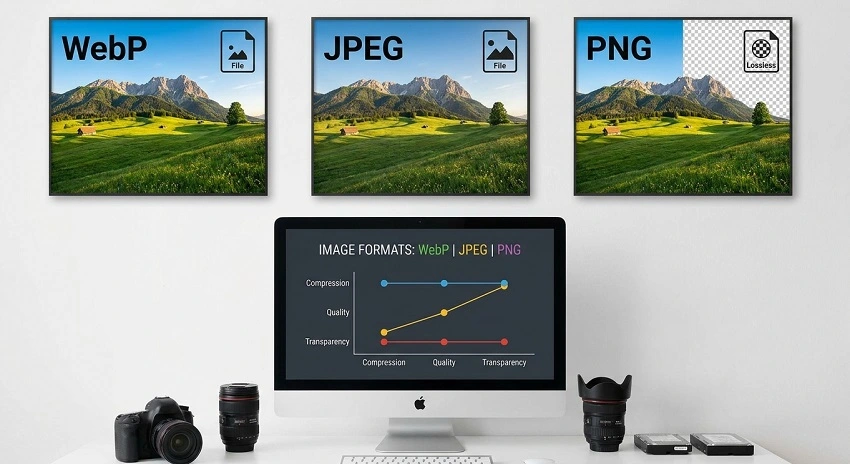
WebP is now the format we recommend for almost every product image. Here’s why:
- 25-35% smaller than comparable JPEGs at equivalent quality
- Supports transparency (like PNG) but at a fraction of the file size
- Supported by all modern browsers, we’re past the compatibility concerns that held WebP back a few years ago
- Shopify’s CDN actually serves WebP automatically when the browser supports it, even if you upload a JPEG
If you’re uploading new images in 2026, shoot for WebP. Most modern image editing tools like Photoshop, Lightroom, Figma, Canva- all export WebP natively now.
JPEG: Still Solid for Photos
JPEG is still perfectly fine for product photography. It’s lossy compression, meaning some data is discarded, but at 80-85% quality, the difference is invisible to the human eye, and the file size savings are massive.
Use JPEG when:
- You don’t need transparency
- You’re working with photographic images (not graphics or logos)
- You’re re-exporting from an existing workflow that already produces JPEGs
PNG: Reserve It for a Reason
PNG is lossless, which sounds great in theory. The problem is that PNG files are large. A PNG product image that should be 200KB ends up being 1.2MB.
Use PNG only when you absolutely need a transparent background, like a product shot on white that you’re placing over a colored section, or a logo. For everything else, WebP beats PNG on every metric.
GIF: Hard No
Don’t use GIFs for product images. If you want motion, use a product video or a short MP4. GIFs are enormous relative to their quality and they make your store feel dated.
Compression: How to Cut File Size Without Cutting Quality
Here’s the part most guides skip, but it’s where the real gains are.
The goal is perceptual quality, images that look identical to the human eye but are dramatically smaller in file size. Here’s my process:
Step 1: Start with the right export settings. When exporting from Photoshop or Lightroom, use 80% quality for JPEG, or equivalent for WebP. Not 100%. Not “save for maximum quality.” 80%. The file size difference between 80% and 100% quality is enormous; the visual difference is essentially nothing.
Step 2: Use a dedicated compression tool. After exporting, run your images through a compression tool:
- Squoosh — Google’s free, browser-based tool. Incredible results, full control over settings.
- TinyPNG / TinyJPG — Dead simple, great for batches, free up to 20 images per month.
- ImageOptim — Mac desktop app, handles JPEG, PNG, and WebP.
- Shopify’s built-in optimization — Shopify compresses images automatically when serving them through its CDN, but this isn’t a substitute for uploading already-optimized files.
A properly compressed 2048x2048px product image should land between 150KB and 400KB. If yours are coming in over 1MB, there’s room to optimize without any quality loss.
Step 3: Check on mobile. Always preview your product page on an actual phone before publishing. Not just your browser’s mobile emulator, a real phone. If images look good there, you’re in great shape.
Common Shopify Image Mistakes (That Are Costing You Sales)
Let’s run through the biggest mistakes we see over and over:
Uploading inconsistent sizes across a product. If your first product photo is 2048px and your second is 800px, Shopify will display them at different scales. It looks sloppy and signals low quality to shoppers.
Ignoring alt text. This isn’t directly a size issue, but it’s the other half of image optimization. Every product image needs a descriptive alt tag with your target keywords. It helps with accessibility and with Google Images rankings. Don’t skip it.
Using the same image for thumbnails and full-size views. Shopify handles this automatically through its responsive image system, but if you’re customizing your theme, make sure you’re using Shopify’s img_url filter with size parameters rather than serving full-resolution images as thumbnails.
Not optimizing lifestyle images. Everyone obsesses over product images on white backgrounds, then uploads an 8MB lifestyle photo from a camera roll. Lifestyle images need the same treatment, resize to 2048px max width, compress, done.
Skipping the video option. Product videos convert at a significantly higher rate than static images for many categories. Shopify supports MP4 videos directly on product pages. If you’re selling anything with a physical demonstration (tools, apparel with movement, food), a 15-30 second product video will do more for your conversion rate than any amount of image optimization.
A Quick-Reference Shopify Image Spec Sheet
Here’s everything in one place:
| Image Type | Recommended Size | Format | Target File Size |
| Product images | 2048 x 2048px | WebP / JPEG | 150–400KB |
| Collection images | 2048 x 2048px | WebP / JPEG | 150–500KB |
| Blog post images | 1800 x 1000px | WebP / JPEG | 100–300KB |
| Background images | 1920 x 1080px | WebP / JPEG | 200–500KB |
| Logo | Up to 450 x 250px | PNG / SVG | Under 50KB |
| Favicon | 32 x 32px | PNG | Under 10KB |
The 2026 Image Optimization Checklist
Before you hit publish on any product page, run through this:
- Images are at least 800px on the shortest side (2048px recommended)
- All images for a product use the same aspect ratio
- File size is under 1MB (ideally under 400KB)
- Format is WebP or JPEG (PNG only if transparency is needed)
- Images have been compressed with Squoosh, TinyPNG, or equivalent
- Alt text is filled in for every image
- Images look sharp on both desktop and mobile
Final Thoughts
Shopify image optimization isn’t complicated, but it does require intention. The default behavior of most store owners is to upload whatever comes off their camera or phone and call it a day. That’s a mistake that compounds over time as your product catalog grows.
Get your sizes right. Pick a format and stick to it. Compress before you upload. And make sure every image tells the best possible story about your product.
The brands winning on Shopify in 2026 aren’t necessarily the ones with the best products. They’re the ones who understand that the buying experience starts with the image, and they’ve put in the work to make every image count.
Now go audit your store. We guarantee you’ll find at least three images that need work.