Google Shopping Image Requirements 2026: What You Must Know Before Running Ads
Product images are your first impression on Google Shopping. Get them wrong and your listings get pulled before a single shopper ever clicks. Here’s what changed in 2026 and what you actually need to do about it.
Most sellers set images once and never look at them again. The photos go live, the feed gets submitted, and that’s the end of it. Images become an afterthought the moment the campaign starts running.
That approach is getting people burned in 2026. Google raised the bar on image quality, announced a new minimum size requirement that goes into enforcement on January 31, 2027, and has been flagging non-compliant listings with warnings since April.
If you have products running on Shopping right now and you haven’t checked your images recently, there’s a decent chance some of them already have warning flags in your Merchant Center account.
This guide goes through exactly what the requirements are, what changed, what gets images pulled, and the practical difference between hitting the minimum and actually running good ads.
The Size Change That’s Catching People Off Guard
For most of Google Shopping’s history, the minimum image size was surprisingly low. Non-apparel products only needed 100 x 100 pixels. Clothing required 250 x 250 pixels. You could technically run Shopping ads with photos barely larger than a postage stamp and Google would accept them.
That ends on February 1, 2027. From that date, every product category, clothing, electronics, furniture, auto parts, everything, needs a minimum of 500 x 500 pixels. The old category split disappears entirely.
Google started warning merchants on April 14, 2026. Since then, any image below the new threshold shows up in Merchant Center with the message: “Image too small for upcoming enforcement.” The warnings are item-level, meaning you can see exactly which products are affected without guessing.
Here’s the thing most sellers get wrong: they read 500 x 500 px and think that’s the target. It’s the floor. The actual recommendation from Google is 1,500 x 1,500 pixels, and there’s a real reason for that.
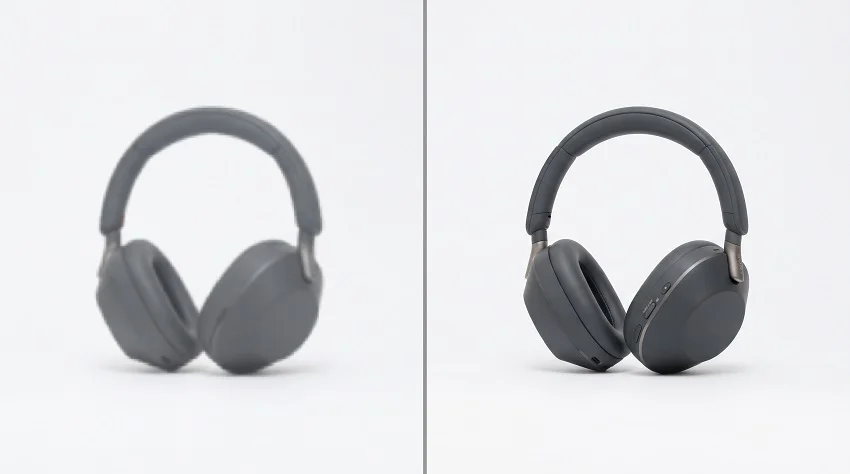
Google serves Shopping images across multiple surfaces, standard search results, the Shopping tab, image search, YouTube Shopping, each rendering at different sizes and pixel densities. A 500px image looks fine on a desktop monitor but looks blurry on a high-DPI phone screen at the same display size, because the phone needs roughly twice the source pixels to look sharp.
The takeaway: Shoot for 1,500 × 1,500 px as your baseline, not the minimum. Google classifies anything above 1,024 pixels as “high resolution” and says high-res images are strongly correlated with clicks and engagement. Meeting the minimum gets you in the auction. High-res images help you win it.
The Full 2026 Spec at a Glance
Here’s the complete reference table so you have everything in one place.
|
Spec |
Hard Requirement |
Google Recommends |
| Main image (image_link) | 100×100 px (non-apparel) / 250×250 px (apparel) until Jan 31, 2027. 500×500 px for all after. | 1,500 × 1,500 px or larger |
| Max resolution | 64 megapixels | Highest quality available |
| Max file size | 16 MB | Keep JPEG under 2 MB |
| Accepted formats | JPEG, PNG, static GIF, WebP, BMP, TIFF | JPEG for most products |
| Product fill | 75% minimum | 75–90% of the frame |
| Background | Must not block the product | White or light neutral solid |
| Additional images | Up to 10 per product | Fill all 10 slots |
| Lifestyle image (lifestyle_image_link) | 600 × 600 px minimum | 1,500 × 1,500 px or larger |
| Image URL | HTTP/HTTPS, crawlable by Googlebot-image, HTTP 200, max 2,000 characters | Stable URLs, no expiring tokens |
What Google Actually Wants in Your Main Image
The image_link attribute is your primary product photo. It’s the one that appears in Shopping search results, and Google holds it to a stricter standard than the additional images you submit alongside it.
What the main image must include
- The actual product being sold — not a stock photo, not an illustration, not a placeholder graphic
- The product filling between 75 and 90 percent of the frame
- No pricing, sale banners, “Free Shipping” notices, or brand logos on the image
- Clean, professional lighting with no heavy shadows blocking detail
- No text, watermarks, overlays, or promotional elements of any kind
- No decorative borders, gradient edges, or styled frames around the product
- For bundled products: the entire bundle visible in a single image
Background rules
White or light neutral backgrounds are Google’s preference for main images. They look consistent across search results and tend to convert better because there’s nothing competing with the product for visual attention.
A staged or lifestyle photo as your main image is not automatically rejected. But the product must be clearly visible and identifiable as the primary subject. The moment the background competes with the product for attention, you’re in risky territory for the main image slot.
One practical note: transparent backgrounds can render poorly when the product itself is white or very light, because the display background bleeds through and makes edges hard to see. A clean white background prevents that entirely and is consistently the safest choice for image_link.
Additional Images: The 10 Slots Most Sellers Ignore
Google allows up to 10 additional images per product through the additional_image_link attribute. Most sellers use one, maybe two. That’s a missed opportunity that’s costing them real clicks.
One analysis found products shown from multiple angles drive up to 58% more sales compared to single-image listings. Whether that specific figure holds for your category or not, the direction is clear across the data: more high-quality images means more engaged shoppers.
The additional image slots follow the same technical specs as your main image, but Google gives you more creative freedom with the content. This is where lifestyle photos, close-up detail shots, size comparisons, in-use context photos, and packaging shots belong. The clean white-background hero goes in image_link. The additional slots are for everything that helps a shopper make a decision.
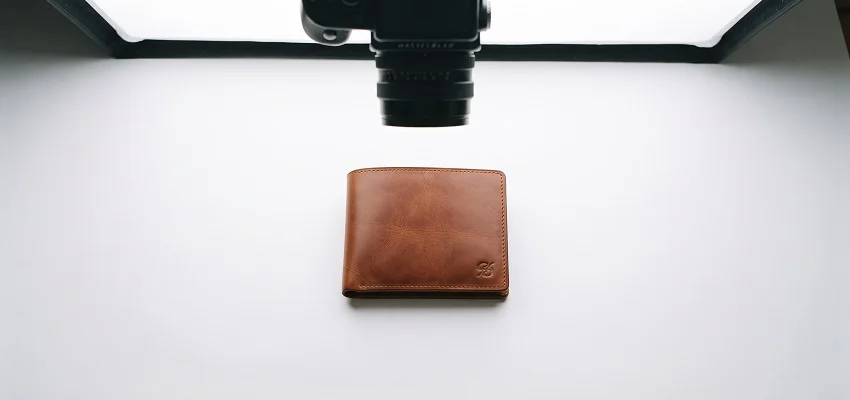
Example: For a leather wallet, the main image is a flat lay on white. Additional images show the open interior, a close-up of the stitching quality, the wallet in a back pocket, and next to a phone for size reference. Four slots filled with information that directly answers what a buyer wants to know.
Lifestyle Images: The Separate Attribute Worth Knowing
Google added a dedicated lifestyle_image_link attribute specifically for free listings. It’s separate from your standard additional images and designed for contextual, real-world product photography.
The minimum size is 600 x 600 pixels, though 1,500 x 1,500 px is recommended. The product still needs to be the focal point of the shot, but you have genuine freedom to show people using or benefiting from what you sell, something the main image slot doesn’t allow.
Lifestyle images appear primarily in free listings rather than paid Shopping ads, so their direct impact on paid campaigns is indirect. But for merchants running both free and paid programs, filling the lifestyle_image_link slot costs nothing and adds visibility across more search surfaces.
The Most Common Reasons Images Get Disapproved
These six issues account for the overwhelming majority of image-related disapprovals in Merchant Center. If you’re troubleshooting a product that got pulled, start here.
1. Promotional text or overlays
Anything printed on the image beyond the product itself- prices, “Sale” banners, your website URL, brand logos. Google treats these as promotional elements and disapproves immediately, with no grace period. This is one of the few violations where there’s no warning window.
2. Image too small
Below the current category minimums today, or below 500×500 px after January 31, 2027. The warnings in the Merchant Center since April 2026 are your signal to act before enforcement begins.
3. Placeholder or generic images
“No image available” graphics, stock photos that don’t show the actual sold product, or illustrations used in place of real photography. Every product needs an actual photo of itself, not a representative or look-alike image.
4. Broken image URL
The URL returns a 404, is blocked by robots.txt for Googlebot-image, or contains an expiring authentication token. Google fetches images in background crawls, and a URL that worked at import time can fail later when a token expires.
5. Upscaled small images
Taking a 100px image and resizing it to 600px doesn’t meet the requirement. Google’s policy is explicit: supply a genuine full-resolution source. A stretched thumbnail is still a thumbnail, and Google can detect it.
6. Borders or decorative frames
Colored frames, gradient edges, or any styled border added around the product image. These are treated as overlays and are prohibited on main product images.
URL Problems That Catch Sellers Off Guard
Image quality is the obvious thing to focus on, but URL problems cause a surprising number of disapproval, especially for sellers using supplier catalogs or dropship feeds.
The image URL must be publicly accessible with no login required. It must return an HTTP 200 status code when Googlebot-image requests it. It must be under 2,000 characters. And it has to be ASCII-compliant per RFC 3986.
The failure mode that trips people up most often is supplier image URLs with expiring signed tokens. The URL works fine at feed import. Google accepts the product.
Then Google’s background crawl runs a few days later, the auth token has expired, the image returns an error, and the product gets flagged for a broken image, even though nothing changed on your end and the original crawl worked.
If you’re importing from a supplier, check whether image URLs contain authentication parameters or session tokens. If they do, you need to either host copies of the images yourself or route them through a CDN that serves permanent public URLs. Extra work up front, but it prevents a category of silent disapprovals that are hard to trace after the fact.
One more thing worth checking: make sure Googlebot and Googlebot-image aren’t blocked in your robots.txt. It’s a more common cause of image load failures than most people expect, and it looks identical to a broken URL from the Merchant Center side.
How to Check Your Status in Merchant Center Right Now

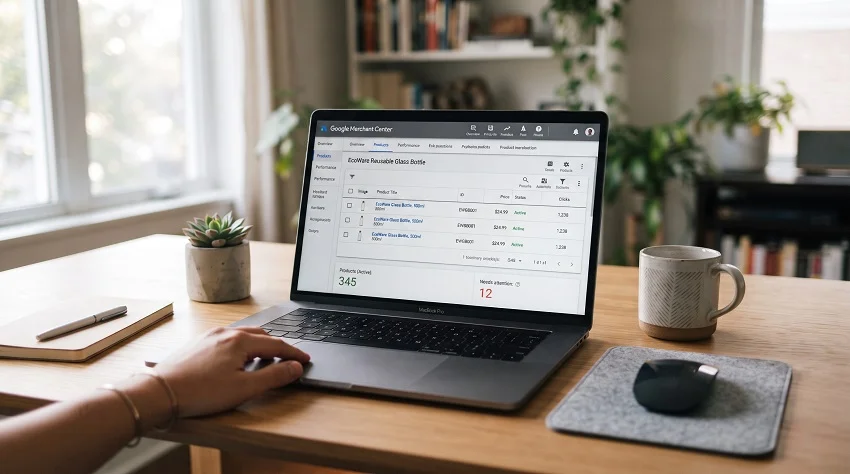
Log into Google Merchant Center and go to the Products tab. Filter by “Needs attention” to surface image-related warnings. Any product below the new 500px threshold shows the message “Image too small for upcoming enforcement” at the item level.
The Diagnostics section lets you download a CSV of all issues across your entire catalog. If you’re managing hundreds or thousands of SKUs, that export is far more practical than clicking through individual product records.
Once you’ve fixed the images and resubmitted the feed, use the “Request review” button in Diagnostics. Google re-evaluates affected products and item-level disapprovals typically resolve within a few days of submitting corrected images.
Questions People Actually Ask
Does every image have to use a white background?
Not strictly required, but strongly preferred for the main image. Google’s documentation recommends white or neutral backgrounds for image_link. Additional images and lifestyle images have more flexibility, as long as the product is clearly the focal point.
Can I use the same image across product variants?
Only if the image accurately represents that specific variant. If you sell a shirt in red and blue, the red variant needs an image of the red shirt. Reusing a single image across color variants is a common disapproval trigger, especially when Google can detect a mismatch between the listed variant attribute and the image displayed.
What’s the difference between image_link and additional_image_link?
image_link is the primary product photo that appears in standard Shopping search results. additional_image_link provides up to 10 supplementary images for alternate angles, detail shots, and lifestyle context.
Will Google’s AI tools fix my images automatically?
Google’s Product Studio, available inside Merchant Center, offers background removal, resolution upscaling, and lifestyle scene generation. But upscaling a genuinely low-resolution source file doesn’t substitute for real high-resolution photography.
When exactly does the 500×500 px minimum take effect?
January 31, 2027 is the enforcement date. Warnings started appearing in the Merchant Center on April 14, 2026. Products below the threshold won’t be automatically disapproved until then, but updating a large catalog takes time. February 1st is not the moment to start.
What file format is safest to use?
JPEG for most products. It keeps file sizes manageable while maintaining quality at Shopping display sizes, and every version of Google’s crawler handles it reliably. PNG is better for products with transparent backgrounds, though watch for the rendering issue with light-colored products mentioned earlier.
The Short Version
Google Shopping’s image bar got higher in 2026. The new 500 x 500 px minimum takes effect February 1, 2027, and Merchant Center is already flagging affected listings. But the minimum is not the goal.
The sellers running the cleanest, sharpest catalogs at 1,500 x 1,500 px, filling all 10 additional image slots, keeping URLs stable and permanently crawlable, and keeping promotional text off every image, are the ones who see the best performance. That’s true regardless of any enforcement deadline.
If you have image warnings in the Merchant Center today, fix them before the deadline. If you don’t have warnings but your images are sitting at 400px, take the time to source or reshoot at higher resolution. The technical bar Google is raising is the same bar that separates the listings shoppers click from the ones they scroll past.