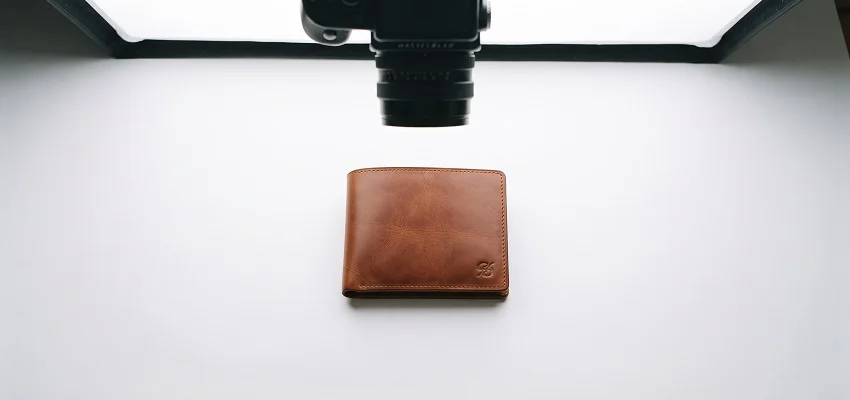
Pinterest Product Pins: How to Format and Edit Images for Maximum Saves

Your product is not the problem.
We know that is not what you want to hear when your pins are sitting at 12 saves and zero clicks. But blaming the product is the wrong instinct. The people who are actually growing on Pinterest right now, they are selling pretty ordinary stuff. Phone cases. Candles. Tote bags. Things you can buy from 400 other sellers. What they got right was the image.
Pinterest gives you maybe half a second. That is not a metaphor. Eye-tracking studies on social platforms consistently show users decide whether to slow down within 300 to 500 milliseconds of seeing an image. Your pin description, your price, your brand name, none of that matters until the image buys you another few seconds of attention.
So let us talk about how to actually do that.
First, Understand What a Product Pin Actually Is
Not all pins are the same. Standard pins are just images linked to a URL. Product Pins are tied to your actual product catalog through Pinterest’s verified merchant program, and they pull live data, your price, availability, and product name, directly from your site and show it on the pin.
This changes the dynamic. Someone who saves a Product Pin is not just collecting inspiration. They are bookmarking something they might buy. The save-to-purchase path is shorter than almost any other platform, which is why sellers who do this well see Pinterest driving actual revenue, not just traffic.
But it also means your image has to do more. It is not a mood board. It is a product photo competing with every other product photo in that category.
The Dimension Thing People Keep Getting Wrong

1000 x 1500 pixels. 2:3 ratio. Vertical.
That is the spec, and a surprising number of sellers still ignore it. Pinterest was built around vertical scrolling on mobile. The feed fills your screen top to bottom. A tall image takes up more real estate, sits in the feed longer as someone scrolls, and just looks right in a way that square or wide images do not.
Landscape images are basically invisible. We have tested this. A horizontal product photo on Pinterest performs like it is not even there.
You can go slightly shorter, 1000 x 1250 is fine for most categories. Some niches, home decor, fashion, lifestyle, actually prefer the full 1500 height because the extra space lets you add a lifestyle element at the top and the product detail at the bottom. Worth testing.
File format: JPEG for photographs, PNG for anything with text or graphic elements. Keep the file size under 5MB. Pinterest compresses on upload, and you want your starting point to be clean.
One thing most guides skip: crop to your ratio before you edit. Crop after and you risk cutting something out that you edited specifically to keep.
White Backgrounds Are Quietly Killing Your Saves
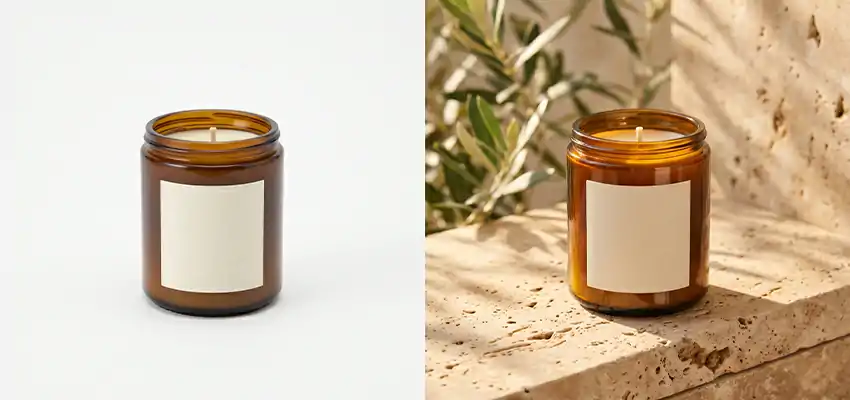
This might be the single most common mistake.
Pinterest’s interface is white. When you post a product photo on a white background, it dissolves into the page. The product is technically there. Nobody notices it.
We get why people use white backgrounds. They look professional. They are easy to shoot. Most e-commerce product photography defaults to white because it looks clean on a website. The problem is Pinterest is not a product page. It is a crowded feed, and you need to stand out from it.
Lifestyle photography fixes this almost immediately. Put the product somewhere real. A soy candle on a bathroom ledge with a soft plant in the background. A leather wallet sitting next to a coffee and a notebook on a wood table.
A skincare serum on a marble counter with morning light catching the glass. These images give context, and context is what gets saved. People do not just save products. They save ideas for how they want to live.
If lifestyle photography is not realistic for your setup, use a colored background. Warm neutrals are safe: terracotta, warm beige, dusty sage, clay. Muted blues and greens work in a lot of categories. Avoid anything too saturated unless that is part of your brand.
Dark backgrounds are genuinely good for the right products. Jewelry, premium skincare, candles, tech accessories, anything that looks expensive on a dark surface should be shot on one. Just make sure there is enough contrast that the product reads clearly at thumbnail size.
Test this before you post: pull the image up on your phone and hold it at arm’s length. Is the product still obvious? If you have to look for it, the background is not working.
Editing: What to Do and How Much Is Too Much
The editing goal is simple. Make the photo look like a better version of itself, not a filtered version of itself.
Brightness first. Most product photos come out darker than they should, especially indoor shots and phone shots. Bump the exposure up a little. Not a lot. You want it to feel bright and inviting, not blown out. Pinterest skews toward bright, light, airy images in most categories.
Contrast second. A modest increase makes the product look sharper and more defined. Helpful when the product and background have similar tones and everything looks a little muddy.
For color: use vibrance, not saturation. This is a real distinction. Saturation raises every color uniformly, and if anything in your photo is already vivid, it goes neon fast. Vibrance is smarter. It boosts the softer tones more than the vivid ones. Richer without looking fake.
Sharpen before you upload. Pinterest’s compression softens images slightly. Sharpening at the end of your editing process counteracts that. Not aggressively, just a little.
Tools: Lightroom on mobile is free and does all of this well. Snapseed is also free and faster for one-off edits. If you are editing fifty product photos a week, build a Lightroom preset and apply it in one tap. Canva handles text overlays well.
Text Overlays: Use Them or Skip Them?

Use them. Just do not be boring about it.
The mistake most people make: they put the product name on the image. Pinterest already shows the product name. The overlay is not there to label anything. It is there to sell the reason to save.
Think about what your buyer is actually wondering. Can I afford this? Will it fit in my apartment? Does it come in my size? Is it available now? Your overlay answers one of those.
Some examples that actually work:
“Ships in 2 days” “Under $35, seriously” “Back in stock after 6 months” “Fits perfectly in small bathrooms” “New colorway just dropped”
Short. Specific. Slightly informal. That last part matters. “New colorway just dropped” sounds like a person. “Introducing our latest color offering” sounds like a press release. Pinterest users respond to the former.
Keep text to seven words or fewer. Script fonts look gorgeous on a large screen and completely unreadable at the thumbnail. Use a clean sans-serif for anything that needs to actually be read. Put the text in a clear area, top or bottom. Never over the product.
Your Logo Needs to Be There
Small, in a corner, every single time.
Pinterest images travel. They get repinned by strangers, screenshotted and shared in group chats, saved to phone camera rolls. If your image does not have your branding on it, the connection to your store disappears the moment the pin leaves your profile.
The logo should not compete with the product. Somewhere between 5 and 8 percent of the image width is usually right. Have a light version and a dark version so you can match whatever background you are using.
Beyond the logo, use consistent fonts, backgrounds, and editing presets across your whole catalog. Visual consistency is how your pins become recognizable before anyone reads the brand name. When someone has saved three or four of your pins without thinking about it, they have already started trusting your taste. That trust is what eventually converts.
The Description Is Part of the Strategy
Pinterest is a search engine, which means your description text is how the pin gets found.
Write it like you are texting a friend who asked about the product. Not formal. Not stuffed with keywords. Specific and natural.
Put the main search phrase in the first sentence. If you sell handmade linen napkins, say “handmade linen napkins” in the first sentence, not the third. After that, say something real about why they are worth saving.
Stay around 100 to 250 characters. Descriptions that get cut in the feed before most people read them.
Finish with a nudge. “Shop now.” “Available in four colors.” “Only 12 left.” Something that creates a small reason to click today.
Post Earlier Than You Think You Need To
Pinterest users plan ahead. Christmas gift searches start in October. Valentine’s Day traffic builds from early January. Back to school trends start in June, not August.
If you have seasonal products and you post the week before the holiday, you have already missed most of the saves. Start five to six weeks early. Sometimes longer for major holidays.
Pinterest Trends is free inside the platform. It shows what is currently growing in your category. When something is climbing, make pins for it now.
Run Two Images Against Each Other
Most sellers post a pin, check it once, forget it. That is the slowest way to get better at this.
More useful habit: for your next five products, make two versions. One lifestyle image. One product-only with a text overlay. Post both in the same week. Check Pinterest Analytics after three weeks.
You will almost always get a clear winner. Note what it had. Apply that to the next batch.
Saves mean the image worked. Clicks mean the description and price worked. If saves are decent but clicks are low, tighten the description. If impressions are high but saves are flat, the image is not holding attention.
Before You Post: Seven Things to Check
Image is 1000 x 1500 pixels. The background is not white or light gray. Product reads clearly at phone thumbnail size. Text overlay is short and answers a real question. Logo is visible in a corner. Description starts with the main keyword and ends with a CTA. Price and availability are showing correctly on the pin.
Two minutes. That is all this takes.
Start With One
Do not try to redo your entire catalog this weekend.
Pick one product. Your best seller, or the one you feel most confident shooting. Apply everything here to one new pin. Post it. Wait two to three weeks and look at what the data says.
You need proof it works before you scale. And you will get it. Not because this is magic, but because most of the competition is still posting white-background product shots and wondering why Pinterest is not converting.
It works when you treat it like a visual search platform and not an afterthought.
Start with one good pin.